Double Display
iPhone app now on the App Store · Mac and Windows apps are free

Your iPhone as a second screen for your Mac

Unfold iPhone Duo and stand it next to your Mac, and you get a second screen you can drag windows onto. It works on other iPhones too.

iPhone with iOS 18 or later · Mac with macOS 15 or later · Windows 11 PC

Features

A real extended display

This is not mirroring. Your Mac sees a new monitor.

A real extended display

Your Mac sees a new monitor, and you can drag windows onto it.

Wi-Fi or cable

Your Mac shows up automatically when both are on the same Wi-Fi. A USB cable works too.

Inner screen

Fits as you fold

Unfold for the big inner screen, fold for the cover screen. Your Mac adjusts the resolution each time.

Retina sharp

Your Mac renders at 2x, so even small text stays crisp.

In action

Unfolded, it is a second screen for your Mac

iPhone Duo as an extended monitor next to your Mac.
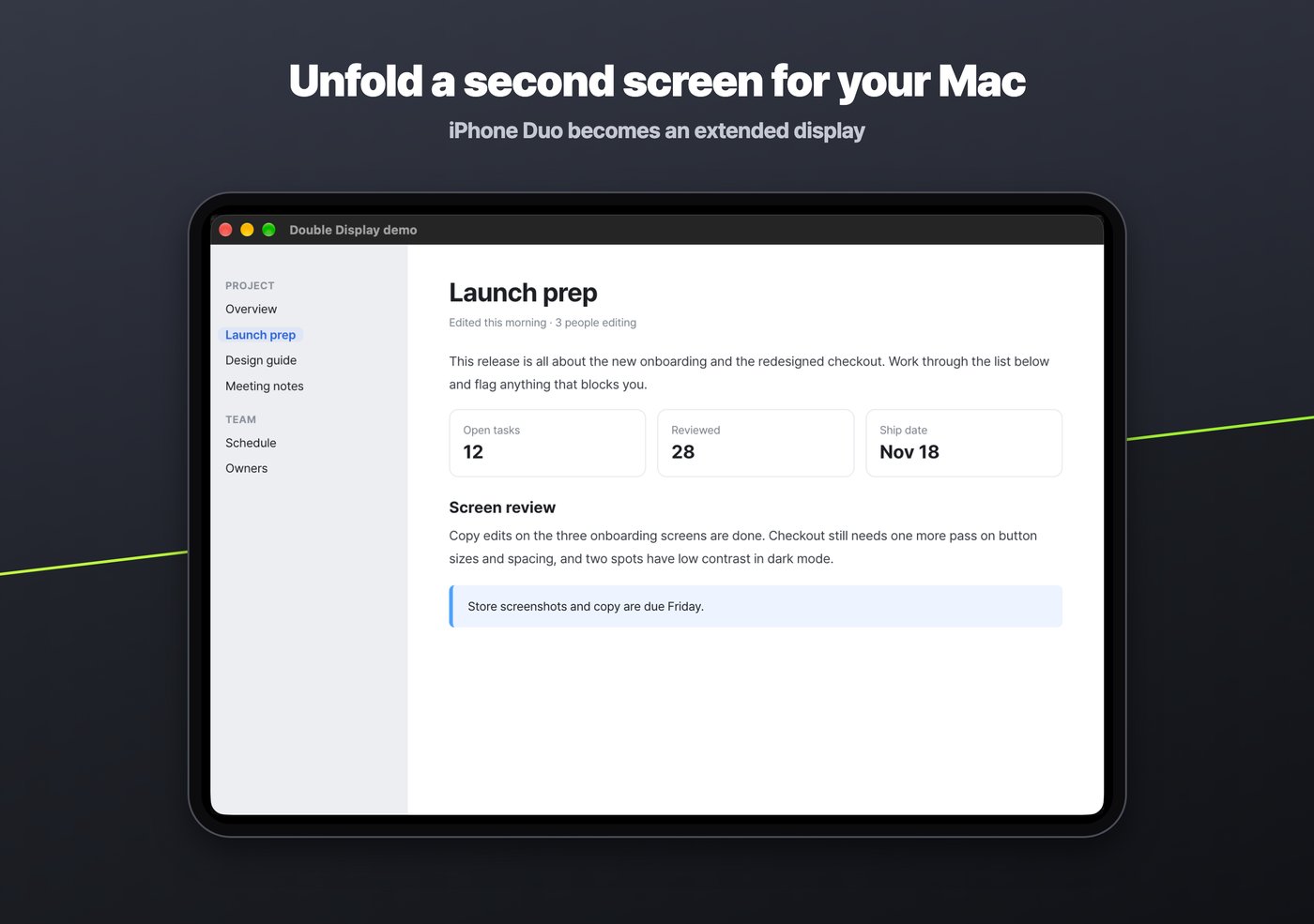
Double Display showing iPhone Duo as an extended monitor next to a Mac

Get started

Three steps

Install the Mac app, then pick your Mac on your iPhone.

  1. 1. Open the DMG and drag it to Applications

    Open the downloaded DMG and drag Double Display into the Applications folder.

  2. 2. Open the menu bar app and allow access

    An icon appears in the menu bar when the app runs. Allow Screen Recording the first time you connect.

  3. 3. Pick your Mac in the iPhone app

    Open Double Display on your iPhone and allow local network access the first time. Pick your Mac from the list on the same Wi-Fi. You can also plug in a cable.

Download

Try it today

Get the Mac app and the Windows app (beta) free from this site, and the iPhone app from the App Store.

Mac app

Version 1.0 · about 0.9 MB · Notarized by Apple (Intel and Apple silicon)

Download the Mac appmacOS 15 or later, free

iPhone app

One-time $5.99. Get it on the App Store.

Get the iPhone app on the App StoreOne-time $5.99

Windows app (beta)

Version 1.0 beta · about 53 MB · This beta has not been tested on many PCs yet, and the app itself is in Korean for now. If something goes wrong, please email us.

  1. First install the virtual monitor driver, Virtual Display Driver.
  2. Unzip the file and run DoubleDisplay.exe. If "Windows protected your PC" appears, click More info, then Run anyway. Allow it if a firewall prompt appears. The first time, click Yes on the administrator prompt. The app has no window and shows up as an icon in the notification area at the right of the taskbar.
  3. To connect with a cable, you need the Apple Devices app. Wi-Fi works without it.
  4. Open the iPhone app and pick this PC from the list.
Download the Windows appWindows 11 x64, freeBeta Download for ARM PCs

This version shows your computer screen only. Controlling your computer by touching the iPhone is planned for a future update.

Privacy

We collect no personal data

There is no account or sign-in, and the app does not collect, store, or transmit personal data. Screen video flows directly from your Mac or Windows PC to your iPhone inside the same local network (or over the cable) and never passes through an outside server. There are no analytics or advertising SDKs.

0Accounts or sign-ins
0Personal data collected
0Outside servers
0Analytics or ad SDKs

Support

Need help?

If something is not working or you have a suggestion, email us.

byjw.studio@gmail.com

Frequently asked questions

It will not connect
  • Check that the Double Display Mac app is running. Its icon should be in the menu bar
  • Check that your Mac and iPhone are on the same Wi-Fi. Guest or public Wi-Fi often blocks device-to-device traffic. If a VPN is on, turn it off and try again
  • On your iPhone, open Settings > Privacy & Security > Local Network and make sure Double Display is on
  • If it still fails, plug in a cable. A cable connects regardless of the Wi-Fi. On a Windows PC, the cable needs the Apple Devices app
What do I need
  • iPhone: iOS 18 or later. It fits iPhone Duo best
  • Mac: macOS 15 or later and the Double Display Mac app
  • Windows: Windows 11, the Double Display Windows app (beta) and the virtual monitor driver
  • Connection: the same Wi-Fi, or a USB cable
Why does it need Screen Recording permission
  • The Mac app needs macOS Screen Recording permission to send your screen to the iPhone. It uses the permission only for that. It does not save the screen or send it anywhere else
  • A permission prompt appears the first time you connect. If you missed it, open System Settings > Privacy & Security > Screen & System Audio Recording on your Mac and turn on Double Display. You may need to reopen the Mac app afterward
Can I control my computer by touching the iPhone
  • Not in this version. It only shows your computer screen. Touch control is planned for a future update